How to make payments on the Apple Store
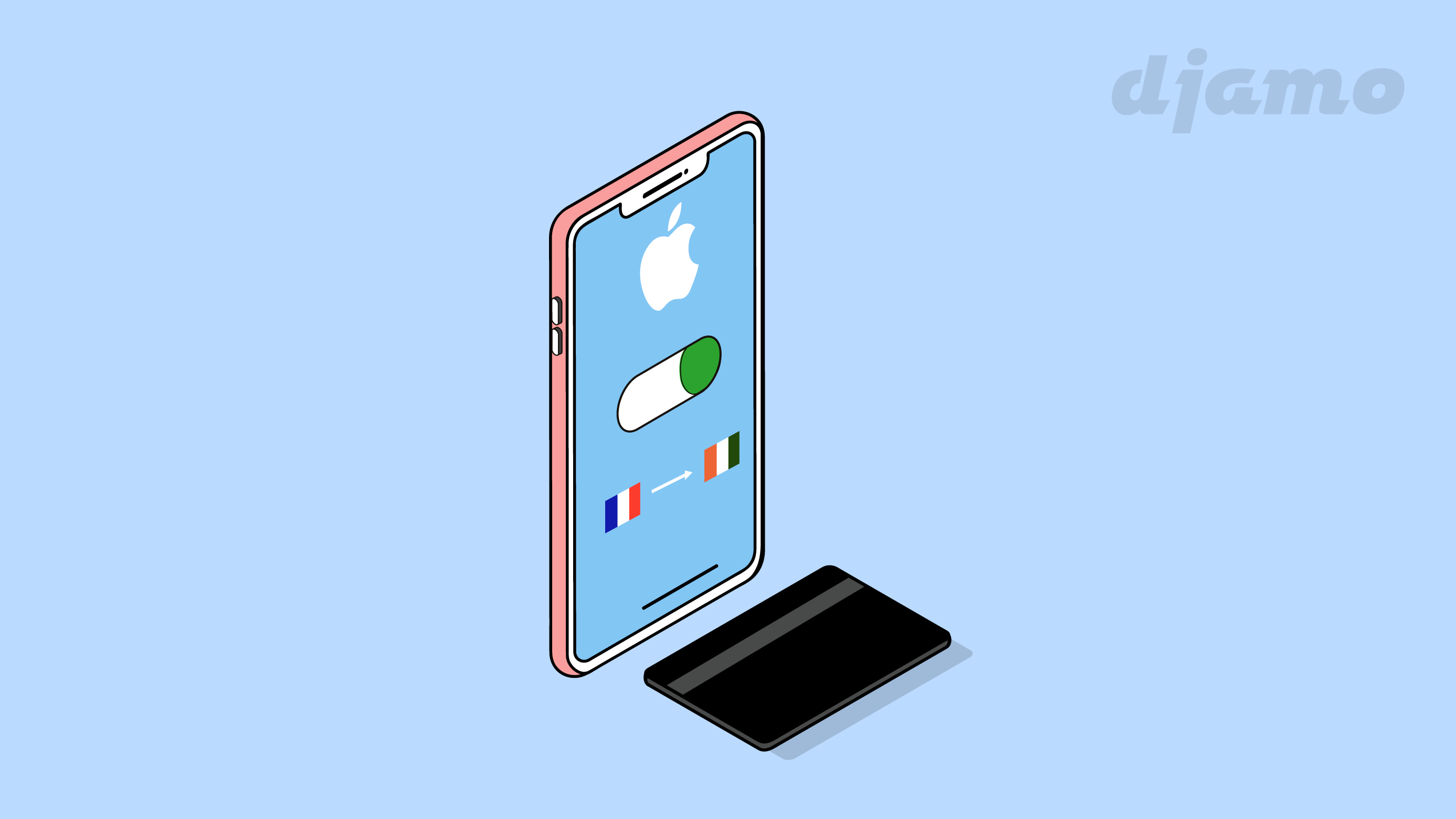
Want to add your Djamo card on the Apple Store but not sure how? This article walks you through it.
The App Store offers thousands of free apps with in-app purchases (Netflix for streaming movies, Deezer or Spotify for music, Amazon and Alibaba for e-commerce, Elsa or Duolingo to learn English, games like Brain Out, Among Us!, Call of Duty Mobile, Magic Tiles 3, Coin Master, Subway Surfers, UNO!, Homescapes, Woodturning 3D, and Gardenscapes).

To make purchases on the App Store, iTunes Store, or Apple Books, or to buy iCloud storage, you need an Apple ID and a valid payment method. You can add a payment card via your iPhone or your Mac.

Also read: Make the most of Black Friday with your Djamo Visa card 🛍🎉
Subscribe to Apple One
Apple One bundles four services (Apple Music, Apple TV+, Apple Arcade, and iCloud). To access it:
- Tap Settings
- Tap your name and select Subscriptions
- Then choose your plan and enjoy the services included in Apple One on all your devices
How to update, add, or remove payment methods linked to your Apple ID
When you update your payment info, it’s automatically applied to all the apps and services you use with your Apple ID.

To update your payment method on iPhone, iPad, or iPod touch:
- Open the Settings app
- Tap your name
- Tap Payment & Shipping. To add a payment method, tap Add Payment Method
To remove a payment method:
- Tap Edit, then tap the Remove button
If your payment method is declined in the App Store or iTunes Store
When you buy items or pay for subscriptions, your payment method is charged at the time of purchase or in the following days. When your payment is declined, you’ll see one of these messages:
- “There was a billing issue with a previous purchase. Please update your billing info to resolve.”
- “There was a billing issue with a previous purchase.
Tap Purchase History to view and resolve the issue. If you tap Cancel, you won’t be able to make purchases until the billing issue is resolved.”
To resolve it, top up your card. Your balance will be charged. After that, you can make new purchases and update your apps, including free apps.
Review your purchase history
- Open the Settings app
- Tap your name, then Media & Purchases. You may be asked to sign in
- Tap Purchase History
- Your purchase history appears. To see purchases older than 90 days, tap “Last 90 Days” and select another date range

If you don’t recognize a charge, check your purchase history and see if multiple items were grouped into one invoice. You can also check the email receipt you received.

Cancel a subscription
- Open the Settings app
- Tap your name, then tap Subscriptions
- Tap the subscription you want to manage and tap Cancel Subscription

How to request a refund
You can request a refund for purchases on the App Store, iTunes Store, Apple Books, or other Apple services. Here’s how:
- Go to reportaproblem.apple.com
- Sign in with your Apple ID and password
- Tap “I’d like to…”
- Choose “Request a refund”
- Choose the reason for the refund, then tap “Next”
- Select the item(s) you purchased, then tap “Submit”
You can’t request a refund while a charge is still pending. Once the charge is processed, try again.

Check the status of your refund
Refund requests are processed within 48 hours. To check the status of your refund:
- Go to reportaproblem.apple.com and sign in with your Apple ID
- Choose Check Status of Claims. If you don’t see this option, you have no pending refund requests
- To view the status, tap Pending
If the refund is accepted, the money is credited back to your card within 30 days.
Change the country or region for your Apple ID
To pay easily on the Apple Store with your Djamo card, you first need to change your account’s country/region. If you chose France, you need to switch to Côte d’Ivoire.

On your iPhone, iPad, or iPod touch
- Open the Settings app
- Tap your name, then tap iTunes Store and App Store
- Tap your Apple ID, then tap View Apple ID
- Tap Media & Purchases
- Tap Country/Region
- Tap “Change Country or Region”
- From the dropdown list, choose Côte d’Ivoire, then review the terms and conditions
- Tap I Agree, then tap again to confirm
- Select a payment method, enter your Djamo card details and your new billing address, then confirm

A few tips when you change your region
Before updating your info, use up any store credit, cancel your subscriptions, and wait until any subscription, pre-order, movie rental, or plan finishes, plus any pending store credit refunds.
Re-download your apps, music, movies, TV shows, and books. Unfortunately, some content types may not be available in your new country or region.
When you follow these steps, the changes apply across all Apple services, on all your Apple devices.
Also read: How to order on Amazon without the hassle 😍