How to buy an Android app on the Google Play Store 📱
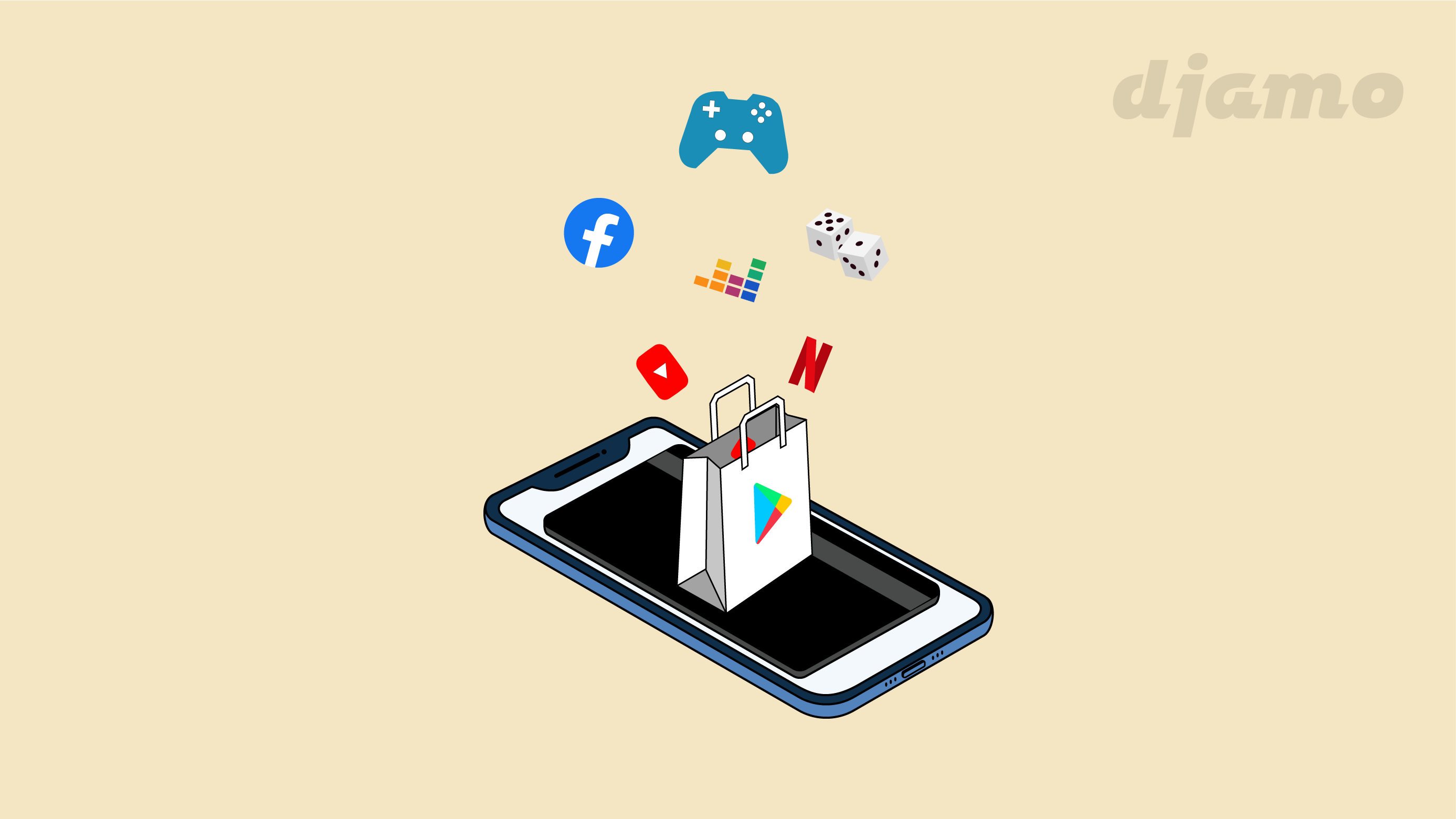
Spotted a paid Android app on the Play Store and want to buy it? With your Djamo card, you can shop on the Play Store in just a few taps. Here’s how.
The Play Store has thousands of free apps with in-app purchases (Netflix for movie streaming, Deezer or Spotify for music, Amazon and Alibaba for e-commerce, Elsa or Duolingo to learn English, Canva for designers), and paid apps like Call of Duty, Assassin’s Creed Identity, Hitman Sniper, and movies like Spider-Man, Mortal Kombat, Sonic and more.

Add your card on the Play Store
Start by opening the Google Play Store app on your Android phone. Then tap the menu on the left of your screen. A drop-down list appears - pick “Payment methods”. After tapping that option, you’ll see “Add a credit or debit card”. A page loads where you’ll enter your card details.

- First, enter the card number. The card number is on the front of your card. You’ll then be asked to add your first and last name as they appear in the “Cards” section of the Djamo app, the expiration date, and the 3-digit security code on the back of the card
- Second, confirm by tapping continue. You’ll get a verification code by SMS or email depending on your choice.
- Finally, go back to the Google Play Store and enter the code you received. Once that’s done, confirm and you’ll get a confirmation message shortly.

You can also watch this video to nail the process.
You can also read: Pay for your online courses on Udemy with your Djamo card 👨🏽🎓
Buy an app
The Play Store has plenty of interesting content - free, paid, or with in-app purchases. From games to educational apps, books, movies and even music.
Once your card is added, follow these steps:
- Search for the app in the search bar
- Tap the price (as shown in the photo below)
- Once you tap Buy, your payment is processed right away and the download starts
- A record of the transaction will appear in your Djamo app

If you want to switch to a Premium plan for an app you’ve already downloaded:
- Open the app and look for the option to buy a subscription
- You’ll be redirected to the Google Play payment portal.
- Since your card is already added, just confirm payment.
Once your card is added, you’ll be auto-charged each time your billing date is near. To cancel your subscription, tap this link for more info.
Also worth reading: How to nail your App Store payments
If you want to change your old payment method to add your Djamo card, follow these steps.
Update a payment method
- Open the Google Play app and tap the profile icon in the top right.
- Tap Payments and subscriptions then Payment methods then More payment settings.
- Under the payment method, tap Edit.
- Make the changes you want.
- Tap Update.


Change country
If you’re in Côte d’Ivoire, your store country should ideally be Côte d’Ivoire. To change country:
- Open the Google Play Store app and tap the profile icon in the top right.
- Tap Settings General then Account and device preferences and finally Country and profiles.
- To change country, tap the one you want to use
- Follow the on-screen instructions to add a payment method for that country.


Note: Updating your profile can take up to 48 hours. You can only change country on Google Play once a year. So once you change country, you can’t change again for a year. And when you change country, you may lose some perks from your old account.
If you used the wrong account when buying an app, contact the app’s developer. They may be able to refund you so you can buy it again with the right account.