How to buy games on PlayStation Network with your Djamo card
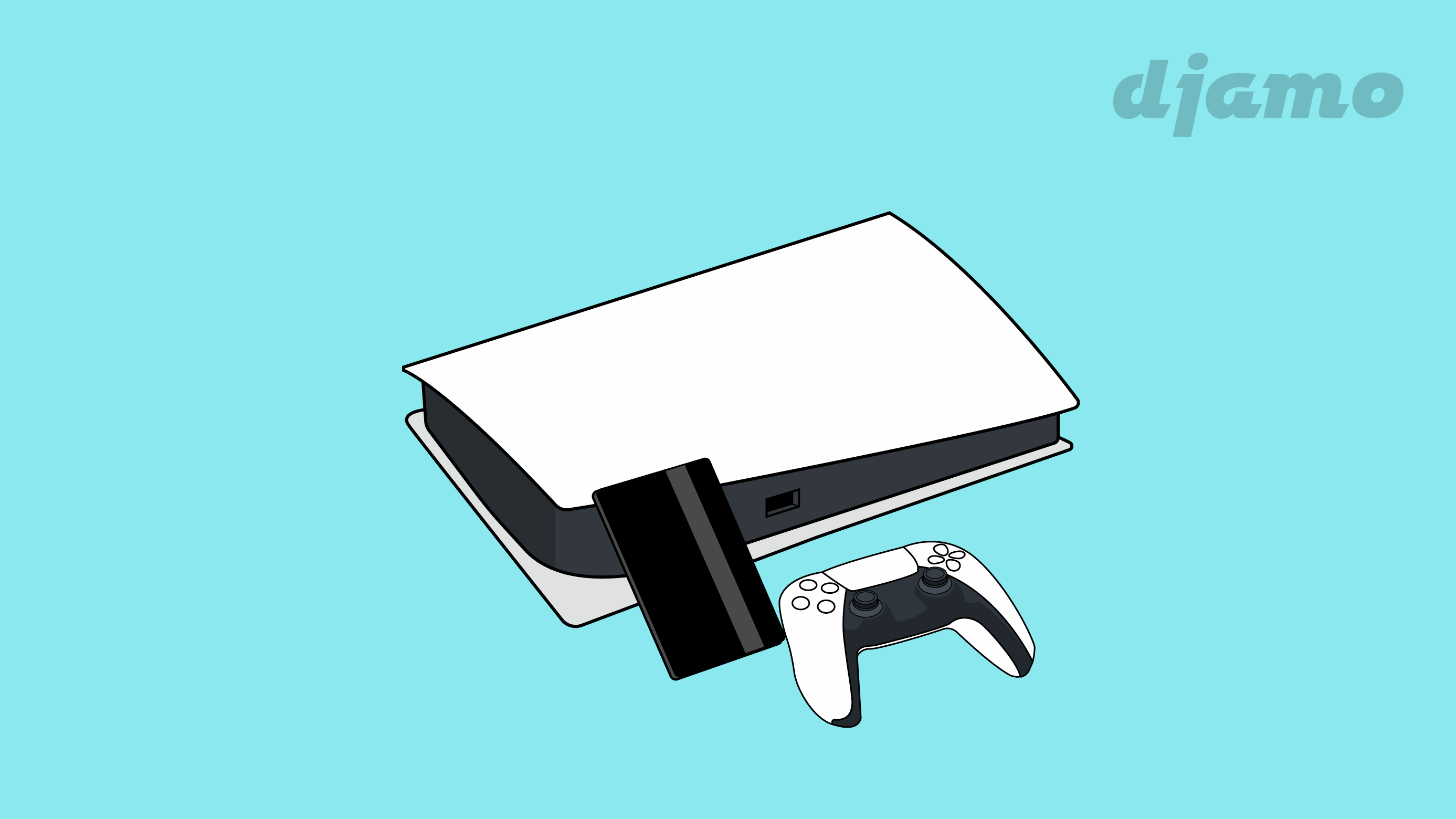
A brand-new video game just dropped? Whether it’s the latest Spider-Man, the famous FIFA with 22 launching soon, fighting games like Demon’s Souls, Ghost of Tsushima, Assassin’s Creed Valhalla, or racing games like Gran Turismo™ 7 and Grand Theft Auto V (GTA) - buy it on Sony’s PlayStation Network with your Djamo card.
Here’s the full breakdown.
Create a PlayStation Network account
To create a PSN account:
- Go to the PlayStation Network website
- Choose “France” as your country since Côte d’Ivoire isn’t on the list.
In the bottom-right of the page, click Sign in - you’ll be asked to create an account. Click “Create a new account”. A window will pop up, and you follow the steps.

NOTE: Users must be at least 18 to create an account. If you’re under 18, ask an adult to create the account for you.
Set a payment method on the PlayStation Store
After creating your account, you’ll add a payment method for future purchases. If you add your Djamo card on the PlayStation Store, its details will be saved to your account, so you won’t have to re-enter them next time.
To add your Djamo card:
- Sign in to the PlayStation Store by clicking “Sign in” at the top of the screen.
- Then click “Payment management” then “Add a payment method”.
- You’ll be asked for your payment info (the card number on the front, your first and last name as they appear in the “Cards” section of the Djamo app, the expiration date, and the 3-digit security code on the back).

Before adding your card to PlayStation Network, top it up to avoid rejection fees for insufficient funds.
Add your Djamo card from your PS5 console
You can add a payment method straight from your console. Sign in to the console and follow these steps.
- In the “Settings” menu, click “Users and accounts”.
- Then select “Account” then “Payments and subscriptions”
- In the “Billing information” tab, enter your card details as explained above.

How to make a purchase
Once your card is added, head to the “Games” catalog, pick what you want and follow the steps. The PlayStation Network site works like any e-commerce site.
- Pick the game
- Add it to your cart
- Confirm payment - it’ll be added to your library right away
- Then download the game.

On PS5, go to your games home screen and click on the game library.
If you already added a card and want to switch to Djamo, you can delete the old card and add the Djamo one.
Remove a payment method from the PlayStation Store
To cancel a subscription, go to “Subscription management”. Delete your payment info from one device, and it disappears from all devices on the account.
To remove a payment method from a browser:
- Sign in to the PlayStation Store by clicking “Sign in” at the top of the screen.
- Then in “Payment management”, select a payment method, then “Remove”. On PS5:
- Go to “Settings” then “Users and accounts”.
- Then in “Account” click “Payments and subscriptions” and “Billing information”.
- Finally, choose one of your payment methods, press the options button, then select Remove.
Request a refund for a PlayStation Store purchase
If you made a purchase on the PlayStation Store but changed your mind, you can request a refund. The deadline to request a refund is 14 days from the purchase date.
That said, if you’ve started downloading or using the purchased content, you can’t get a refund - unless the content has technical issues.
To request a refund, contact PlayStation Network support here
A few reasons a payment fails
- Card details weren’t entered correctly
You may not have correctly entered your card details. When you add a card, you’ll be asked to fill in a form - enter the card number on the front, your first and last name as they appear in the “Cards” section of the Djamo app, the expiration date, and the 3-digit security code on the back carefully.
- Your personal info contains special characters
If your name, address, etc. has special characters, replace them with the closest letter from the Latin alphabet (26 letters). Don’t use characters like asterisks (*), dashes (-), apostrophes (’) or slashes ( / ).